
Make a widget transparent
Smile cannot see your wallpaper, so you show it: screenshot an empty page, tell Smile where the widget will sit, and it crops that piece of wallpaper into the widget's background.
- You will end up with
- A widget with no visible box
- Takes about
- 8 minutes
This is the longest setup in Smile, and the reason is worth knowing. iOS never lets a widget see the wallpaper behind it. The only way to make one look transparent is to hand it a picture of what is behind it, which means a screenshot and a bit of positioning.
Position matters here in a way it does not anywhere else in the app. Decide where the widget goes before you start, and put it exactly there at the end.
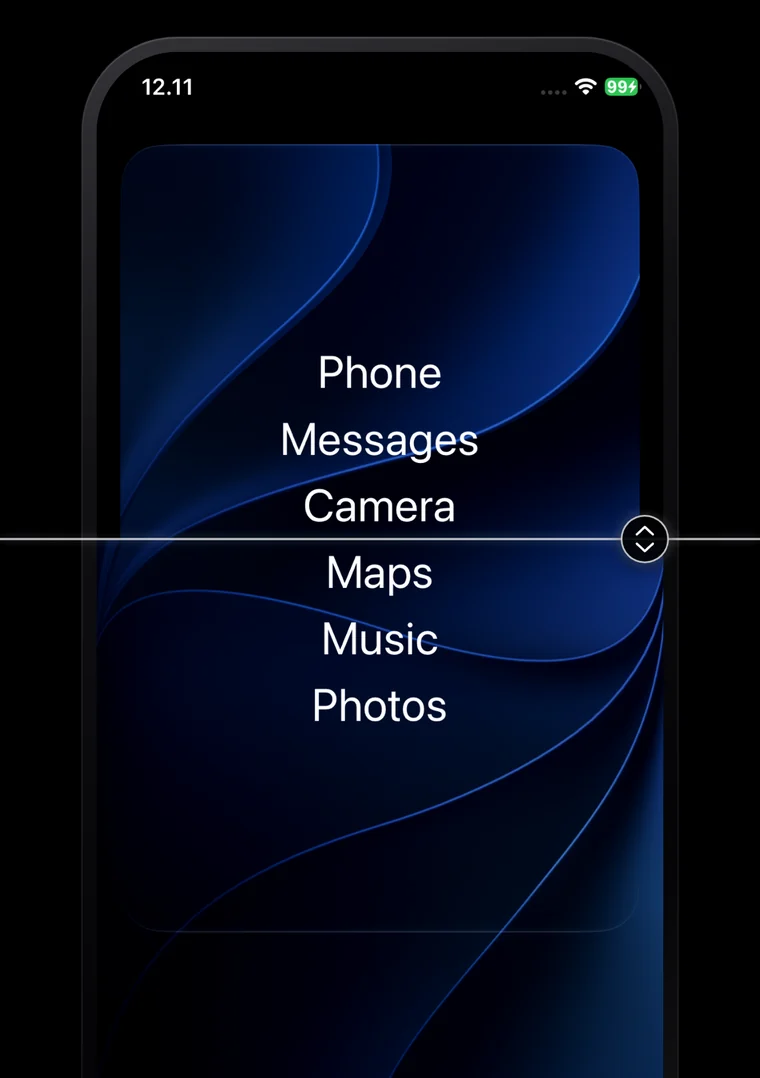
Screenshot an empty home screen page
Swipe to a home screen page with nothing on it, or temporarily clear the page you are going to use. Take a screenshot.
Use a still wallpaper. Anything that moves, and the perspective zoom effect in particular, shifts the background as you tilt the phone, and the illusion breaks. Turn perspective zoom off in wallpaper settings for the cleanest result.
Import the screenshot into Smile
In the widget's settings, open Configure Transparent Background and choose Import Screenshot. Smile works out which iPhone you have from the image size.
Say which size the widget is and where it sits
Pick small, medium or large, then tap the position on the grid where the widget will live. Smile crops that exact rectangle out of your screenshot.
There is an Auto-Detect Position option that guesses from the screenshot. It usually gets it right, and when it does not, the manual grid is right there.
Turn on the transparent background
Flip the transparent background switch on. The preview now shows the cropped piece of wallpaper behind your app names instead of a solid colour.
Place the widget in exactly that spot
Go out to the home screen and put the widget in the position you chose. If it ends up one row down, the background will not match what is behind it and the effect fails completely. This is the step that goes wrong.
Fine-tune the alignment
Almost right is common. Back in the transparent background settings there are X and Y offset controls and width and height scaling to nudge the crop into place a few points at a time.
There are also hue, saturation and lightness corrections, for when iOS applies a slight tint to the widget layer and the seam shows.
If you cannot find the widget's exact position, turn on calibration mode. Every Smile widget renders as solid purple, so you screenshot your home screen, see precisely where the widget sits, and turn calibration back off.
When it does not line up
Three things cause nearly all of it. The screenshot was taken on a different wallpaper than the one you are using now. The widget is not in the position you told Smile it would be. Or perspective zoom is on and the background moves.
Change your wallpaper later and you have to redo this, because the picture Smile is holding no longer matches what is behind the widget.
Different wallpapers on different pages
Each widget can carry its own wallpaper screenshot, so a widget on page one and a widget on page three can both be transparent against different backgrounds.
Watch it instead
This one is much easier to follow on video than in text. The transparency section of the walkthrough starts at 9:11.
Stuck on a step?
Someone in the Discord has almost certainly hit the same thing. It is the fastest way to get unstuck.