
Add a Smile widget to your home screen
Five taps put a Smile widget on your home screen. The only confusing part is what the widgets are called in the gallery, and this covers that.
- You will end up with
- A Smile widget on your home screen
- Takes about
- 2 minutes
Install Smile and open it once
Get the app from the App Store, then open it. iOS will not show a widget in the gallery until its app has been launched at least once, so this step is not optional even though it feels like it should be.
Press and hold an empty part of your home screen
Hold until the icons start wobbling. This is edit mode. If you accidentally hold an icon instead, a menu appears; tap somewhere empty and try again.
Tap the plus button in the top corner
The widget gallery opens.

Search for Smile
Type Smile into the search field at the top of the gallery and pick the app from the results.
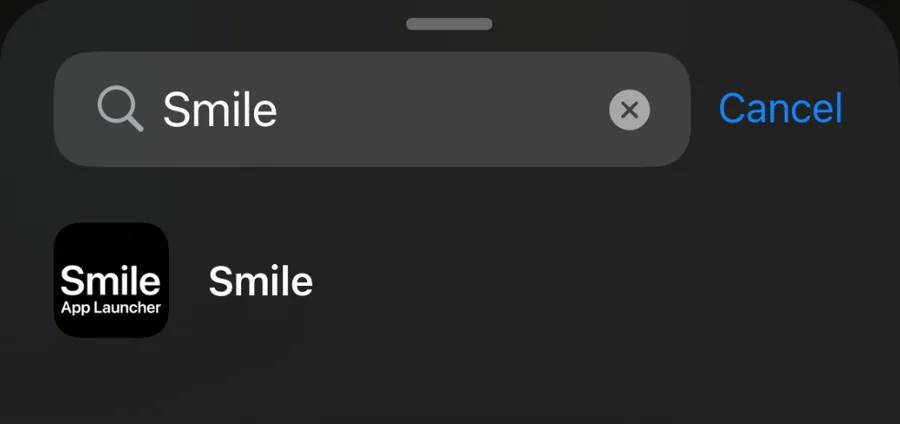
Worth knowing: the app is called Smile, but the individual widgets inside it are still listed as Minimal Launcher Widget 1 through 10, which was the app's original name. They are the right ones. Widget 1 is the first widget in the app, widget 2 the second, and so on down the list.
Pick a widget and a size
Swipe between the sizes and tap Add Widget on the one you want. Small holds a few app names, medium and large hold more. Extra large only appears on iPad.
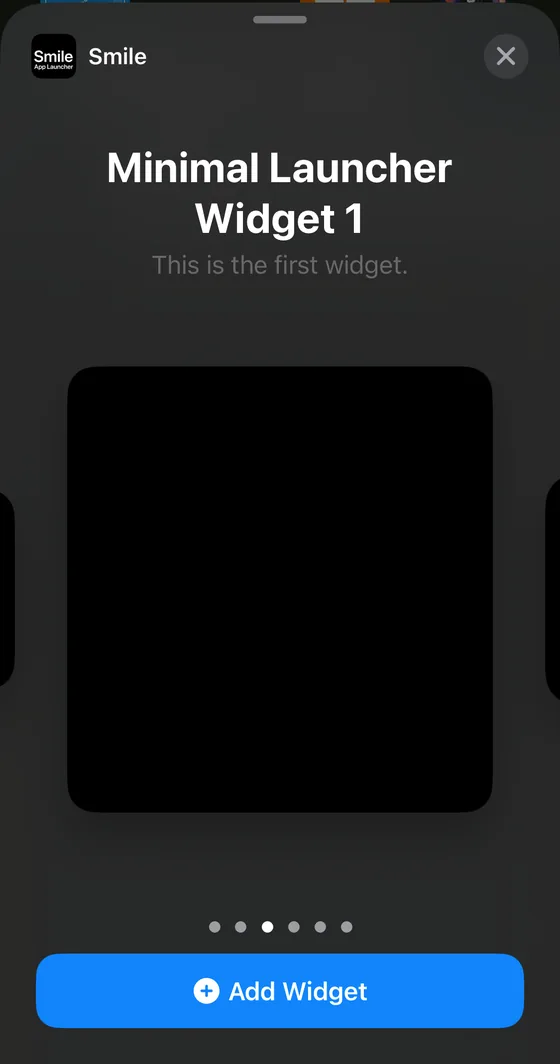
Pick the size before you fill the widget with apps. Changing size later means removing the widget and adding it again, and the apps you entered stay in Smile either way, so nothing is lost. It is just an extra trip.
Fill the widget in Smile
A new widget is empty. Open Smile, choose the widget number you just added, and start adding apps to it. The home screen updates on its own within a few seconds.
Adding more than one
You can put all ten Smile widgets on your home screen if you want to. People often use a large one for the apps they open all the time and a small one further along for the ones they are trying to open less. Each widget keeps its own list and its own appearance.
Stuck on a step?
Someone in the Discord has almost certainly hit the same thing. It is the fastest way to get unstuck.